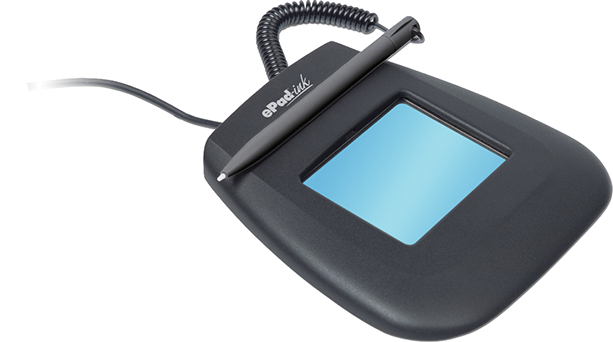
Welcome to ePadsupport.com. This site offers support for the ePadlink ePad and IntegriSign signature software. Click on the appropriate menu option to access archives, FAQs, and other resources.
Linux Support - click here
Windows Support
About Software Downloads - Important
There are two types of software used with our ePadLink electronic signature pads:
- Universal Installer – This software installs the “drivers” that run on your PC or server to provide the communication between your application programs and your ePadLink electronic signature pad. It is called the Universal Installer because it can install drivers for all the different models of ePadLink electronic signature pads. Unless you have a specially configured installer, you must run the Universal installer on each computer that has an ePadLink signature pad connected to it.
-
IntegriSign Desktop – This software provides the plug-ins that enable signature capture in Microsoft Office and Adobe applications. After installing IntegriSign Desktop on your computer, you will be able to place signature fields into documents and sign them, all from within the application program.
Note: If you use your ePad device in a special purpose application, e.g. medical practice signature collection, which has a special installer, you may not have to install IntegriSign Desktop.
Most users of electronic signature pads for general office applications, including Adobe and Microsoft applications, should install both the Universal Installer and IntegriSign Desktop.
NOTE: Users of Citrix and Terminal Services should install 3 software packages (see links below for latest versions):
1. The standard Universal Installer should be installed on the server.
2. The client Universal Installer should be installed on each client PC connected to the server.
3. IntegriSign Desktop should be installed on the server.
The latest versions of the Universal Installer and IntegriSign Desktop appear below on this page; previous versions may be found by clicking "Archives" above.
| Special note for Microsoft Office 2010 64-bit users. |
Universal Installer 10.4
Download UI10.4 Rev 11442 Standard
Universal Installer 10.4 Standard adds support for downloadable SIF (System Independent Format) Fonts used by the Local Font Manager on ePad-vision.
NOTE: If you are using ePad-vision with Universal Installer 10.4 or later, you must download Firmware 4.3 or later into your ePad-vision as described here.
Universal Installer 10.4 supports the recent Windows operating systems: Windows 7 (32 and 64 bit), Vista (32 and 64 bit), Windows XP/SP2, Windows 2003, and Windows 2008.
Download UI10.4 Rev 11445 (Citrix-Terminal Service client support)
Universal Installer 10.4 Client Support is to be installed only on client PCs in a Citrix or Terminal Services network environment. Universal Installer 10.4 Client enhances the operation of ePad-vision in a Citrix environment. Universal Installer 10.4 supports the recent Windows operating systems: Windows 7 (32 and 64 bit), Vista (32 and 64 bit), and Windows XP/SP2, with the following exception:
SPECIAL NOTE FOR 64-BIT TERMINAL SERVICES CLIENTS
If you are using Terminal Services on a 64-bit client PC with a 64-bit Windows operating system,
Download UI10.0 Rev 11265 (Terminal Services 64-bit client support)
Use this version only for 64-bit Terminal Services clients. Do not use this version for Citrix clients. Do not use this version for 32-bit Terminal Services clients.
Universal Installer 10.x provides support for the following ePad models:
• ePad
• ePad II
• ePad-ink
• ePad-vision
• ePad LS
IntegriSign Desktop 10.2
IntegriSign Desktop 10.2 Rev 1378 is a minor release that adds several enhancements, the most significant of which are white space removal and maximum enlargement factor APIs to the Java SDKs.
IntegriSign Desktop 10.2 supports the following ePad models for Windows 7 (32 bit and 64 bit), Windows Vista (32 bit and 64 bit), Windows XP, and Windows 2003:
• ePad
• ePad II
• ePad-ink
• ePad LS
• ePad-vision
Note: If you have IntegriSign Desktop 9.4 or earlier installed on your computer, you must remove it (using the Add or Remove Programs Tool in the Control Panel) before installing IntegriSign Desktop 10.2.
ePad User's Guide - Help for the end-user, including hardware installation and troubleshooting, and software installation and plugins for MS Office and Adobe Acrobat.